
ckfinder与ckeditor整合实现Ajax文件上传
2012-05-05 20:11:12|?次阅读|上传:wustguangh【已有?条评论】发表评论
第2步:将CKFinder.dll拷贝到ASP.NET项目的bin目录下,如图:
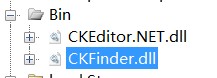
第3步:在站点的适当位置创建保存上传文件的文件夹,本例使用站点根目录下的ckfinder目录保存用户的上传文件。
第4步:配置CKFinder的安全项:
在config.ascx文件中对ckfinder的参数项进行设置,CheckAuthentication函数默认直接返回true,意味着所有访客均可以对文件目录中的文件进行删除操作,也可以不受限制的将文件上传,存在较大的安全隐患,对其进行更改,最终结果如下:
    public override bool CheckAuthentication()
    {
        // WARNING : DO NOT simply return "true". By doing so, you are allowing
        // "anyone" to upload and list the files in your server. You must implement
        // some kind of session validation here. Even something very simple as...
        //
        //        return ( Session[ "IsAuthorized" ] != null && (bool)Session[ "IsAuthorized" ] == true );
        //
        // ... where Session[ "IsAuthorized" ] is set to "true" as soon as the
        // user logs on your system.

        return Session["userName"]!=null;
    }
通常我们并不希望所有用户共用一个上传文件夹,本项目在ckfinder的上传目录中根据登录用户的用户名建立子文件夹,用户只能操作与自己对应的文件夹中的文件,setConfig函数的编辑结果如下:
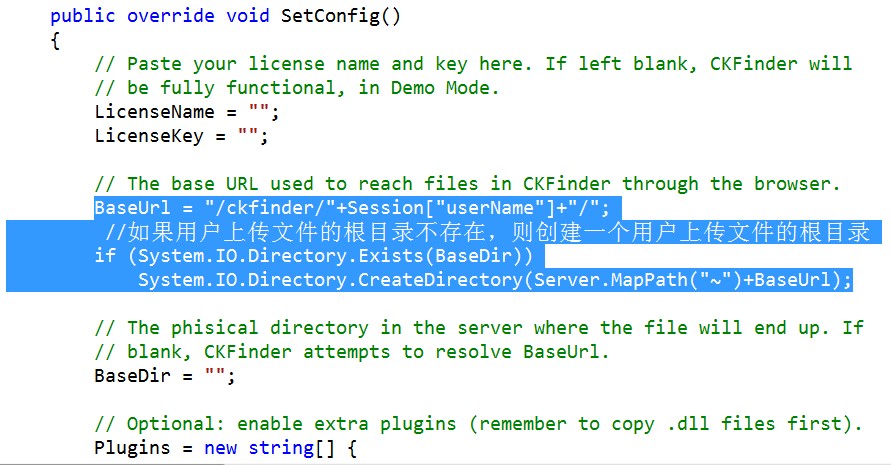
setConfig函数包含了各种参数项的设置,读者可以根据自己的实际情况进行设置。到此,对ckfinder的配置准备工作就基本完成了,下面介绍ckfinder与ckeditor的整合。
第5步:将ckfinder整合到ckeditor中:
将ckfinder整合到ckeditor中非常简单,只需在ASP.NET页的适当地方增加简单的配置语句,本实例将配置语句增加到Page_Load函数中,如下所示:
    protected void Page_Load(object sender, EventArgs e) {
        //设置文件上传使用ckfinder的参数
        CKFinder.FileBrowser fileBrowser = new CKFinder.FileBrowser();
        //设置CKFinder的基路径
        fileBrowser.BasePath = "/source/editor/ckfinder_2.2.1/";
        fileBrowser.SetupCKEditor(ck_content);

        initComponent();
    }
这样,便完成了在ckeditor中整合ckfinder的全部工作,现在在ckeditor中点击插入图片或者其他资源的时候,弹出的对话框中便增加了与文件上传相关的操作接口!
【发表评论0条 】
网友评论(共?条评论)..
ckfinder与ckeditor整合实现Ajax文件上传

 CATIA/CAA
 SWING
SWING MFC
MFC Unity3D
 Android
 JQuery
 ASP.NET